


Stepping Through a Pathway
Once pathways have been created, they may be used by healthcare professionals to step through patient clinical evaluations as they relate to their underlying health conditions. Upon completion, a summary will be generated in the form of a SOAP document based on the responses to available questions. SOAPs may then be further edited and exported, along with any pertinent clinical documentation related to the patient.
Individual users may select the Bookmark option next to the page header to pin frequently visited specialties to their home page


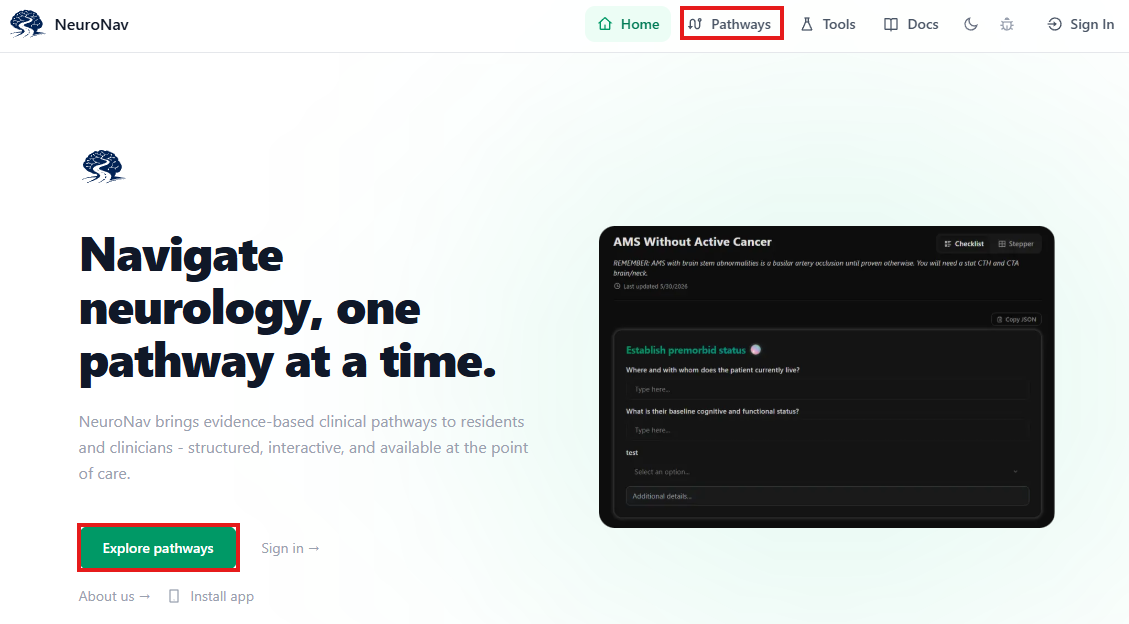
There are two ways to view and work through a specialty. The organization of each view is dependent on the way questions are grouped within the Pathway Editor:
- Checklist — Default view. Single page with all groupings of questions presented
- Stepper — Multi-modal page; selecting Back/Next cycles through each group of questions within the specialty.
The Stepper view will keep a visible record of all questions that have been answered between each section for quick reference
Reviewing the SOAP Note
The Plan section is only editable from the SOAP Review and on the final Generated SOAP page
Any dot phrases configured by the user may be manually added during review or on the final Generated SOAP page (See Dot Phrases)
Generating the SOAP Note
After generation, all sections of the SOAP note will appear collectively in a single-view window. Any further edits can be made by clicking into the text window for each section. Changes will appear as you type.
-
To add clinical documentation to the SOAP note, select Add Tool and choose the desired diagram. A diagram window for each tool will appear at the bottom of the page underneath the SOAP document (See Clinical Tools)
-
Select Copy to copy the details of the SOAP note to the clipboard
-
Select Export PDF to download the SOAP note as .PDF formatted document. Any clinical tool diagrams appended to the note will appear on seperate pages on the document.