


Add NeurologyNav Website Shortcut to Home Screen (iPhone)
1
Go to the Safari app on your iPhone
2
Navigate to https://www.neurologynav.com/
3
Tap the Share button on the menu bar
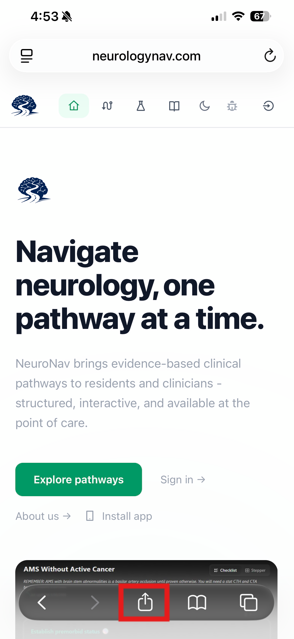
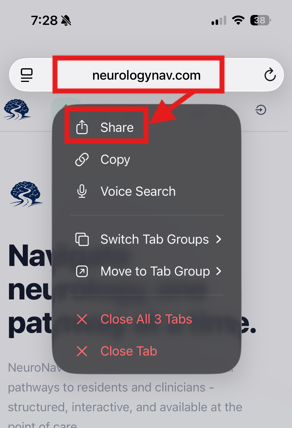
On latest iOS, the menu bar may be hidden from default view. Hold the navigation bar to bring up a menu where the Share button should be present
4
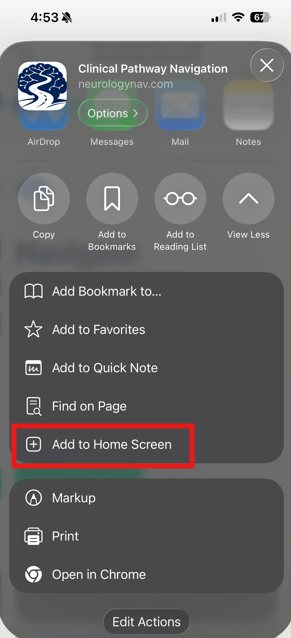
Scroll down list of options. Select 'View More' if option is not immediately presented
5
Tap 'Add to Home Screen'
6
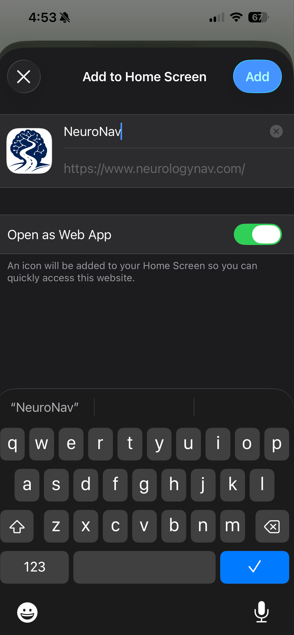
Set title and optional toggles
7
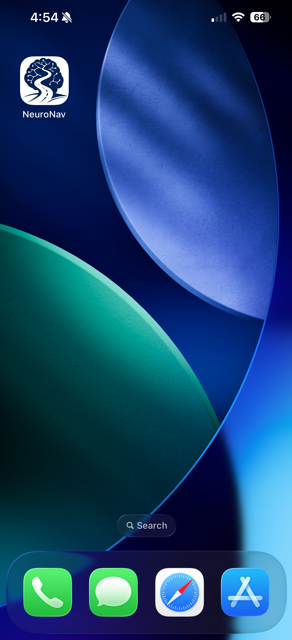
Tap 'Add' to create a website shortcut on your device. The bookmark may be accessed from your phone's Home screen
Add NeurologyNav Website Shortcut to Home Screen (Android)
1
Open mobile browser on Android device
2
Navigate to https://www.neurologynav.com/
3
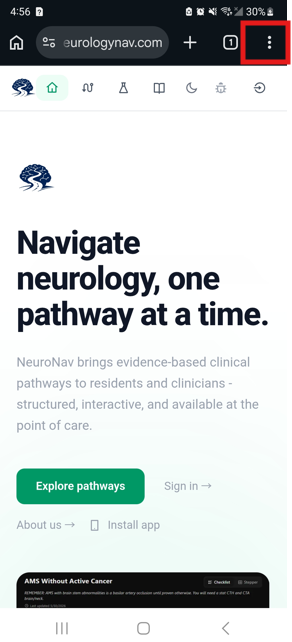
Tap the menu icon (three dots) in the corner next to the URL
4
Tap 'Add to Home Screen'
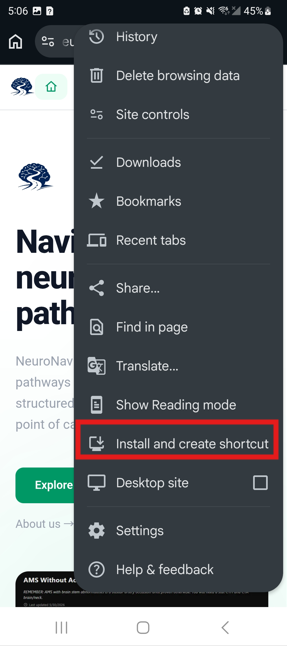
If the only option is Install and Create Shortcut, select it
5
Confirm operation to install app onto device. The bookmark may then be moved and accessed from your phone's Home screen
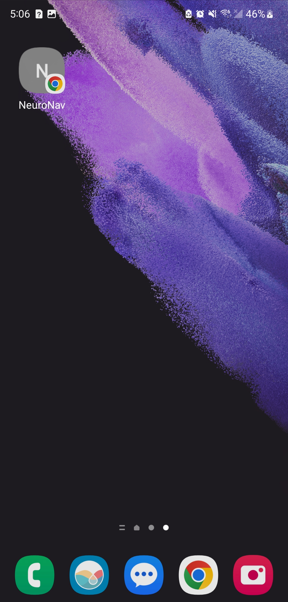
If the app is not immediately present on the Home screen:
- Search for installed apps on the device and drag to home screen
- Make sure 'Lock Home Screen Layout' is disabled under Settings > Home Screen Settings