


Getting Started with Neurology Navigator
Neurology Navigator provides point-of-care, evidence-based history-taking pathways for evaluating neurologic symptoms.
Educational Framework: Rather than serving as a rigid, one-size-fits-all algorithm, pathways guide trainees and clinicians on key questions to consider during evaluations, while still allowing and encouraging users to generate their own questions based on the individual clinical scenario.
Flexible Usage: Designed for both prep and point-of-care use, users may choose to review a pathway beforehand or use it during an encounter for streamlined, real-time history taking.
We recommend reviewing this guide to familiarize yourself with app features, pathway layouts, and note-generation functionality.
This guide uses the New Onset Headache pathway as an example; all steps apply to every pathway on the site.
- Before Getting Started
- Select a Pathway
- Pathway Page
- Pathway Components
- Checklist & Stepper Views
- Generate, Review, and Edit SOAP Note
- Export, Copy or Add a Tool
- Feedback Survey
- Additional Features & Resources
Before Getting Started
- No Account Required: Access pathways and generate notes without logging in. Creating an account provides users the ability to bookmark and custom dot phrases.
- Cross-Platform: Runs in any browser and can be installed as a mobile app on all smartphone operating systems.
- Educational Tool Only: Neurology Navigator does not provide medical advice or replace professional evaluation. Always verify findings independently and apply your own clinical judgment.
Select a Pathway
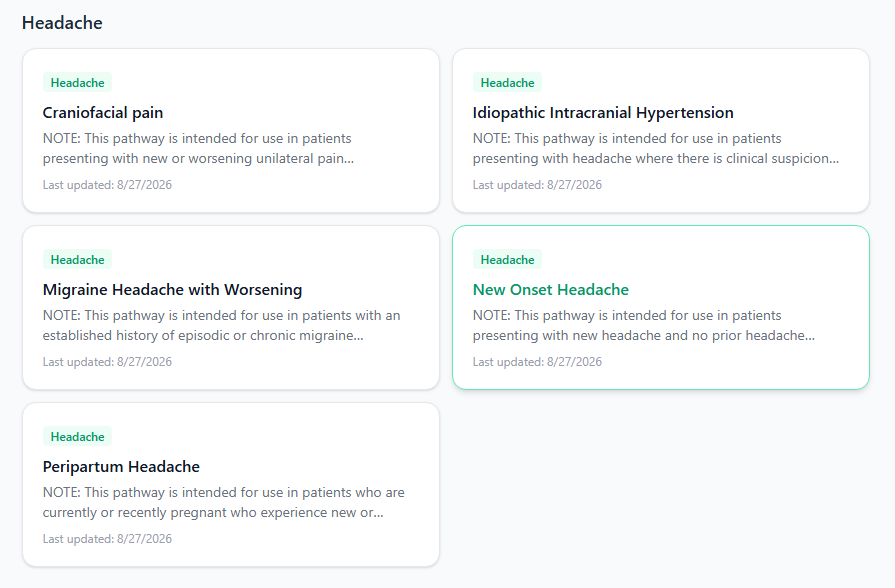
- Select Explore Pathways on the Home page, or click Pathways in the top navigation bar
- Browse by category (Cognitive, Headache, Movement Disorders, etc.)
Included in each pathway is a brief overview and suggested guidance for use
- Click the card to open the pathway
Pathway Page
If signed in, click the bookmark icon next to the header to pin the pathway to your Home page for one-click access.
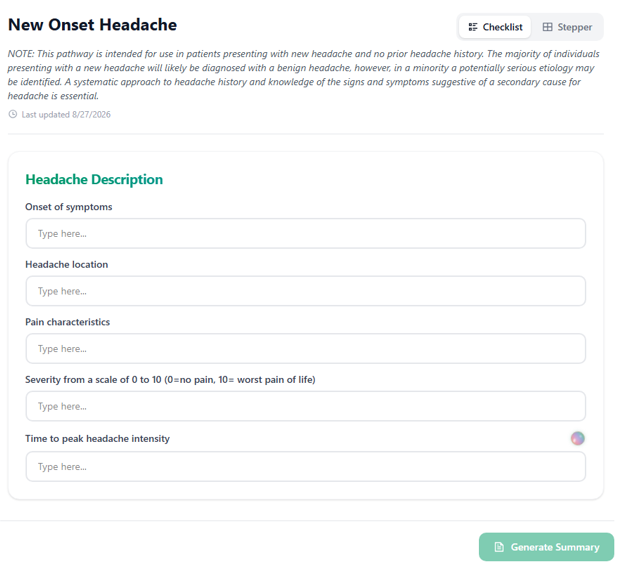
Each pathway includes the following elements:
- Title & View Toggle: Switch between Checklist and Stepper views (see Checklist & Stepper Views)
- Scope Note: Outlines the intended clinical scenario for use
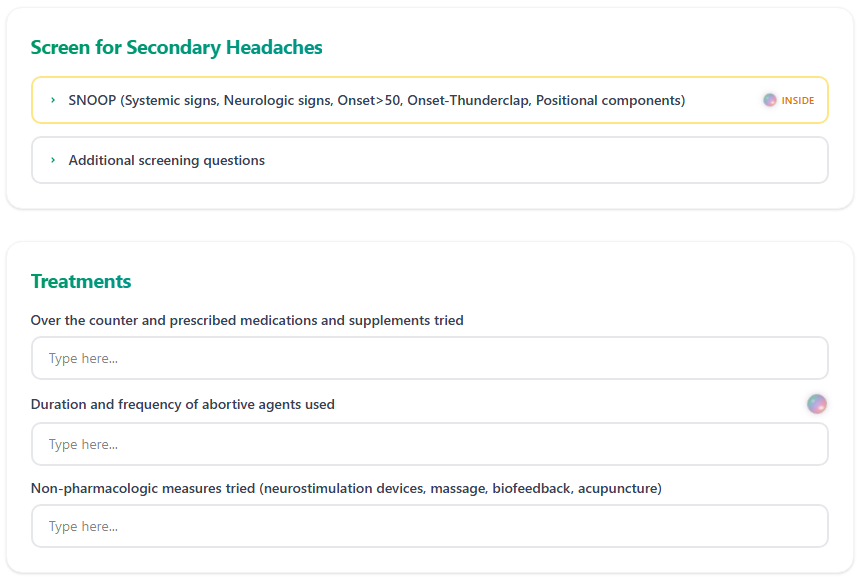
- Question Groups: Divides history and workup into logical stages (e.g., Headache Description, Frequency & Duration, Associated Features, Secondary Headache Screen, Treatments, and Diagnostic Evaluation)
- Generate Summary Button: Located at the bottom of the page to convert your responses into a formatted SOAP note
Pathway Components
The following components on a pathway serves one of two purposes:
- Documentation: Captures patient acquired data which flows directly into the SOAP note
- Education: Provides clinical context within the page
Clinical Pearls
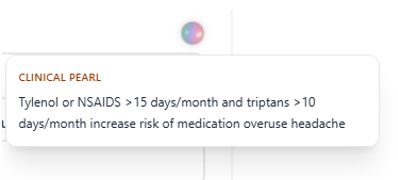
- What They Are: Short, high-yield insights that explain why a question matters, highlight diagnostic red flags, clarify patient responses, or link to supporting evidence
- Where To Find Them: Located next to individual questions or group headers, marked by a Clinical Pearl badge
- How To View Them: Hover over the badge on desktop, or tap to expand and collapse on mobile
Definition Boxes
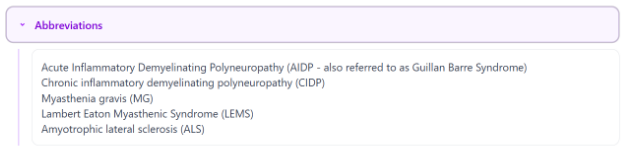
Purple boxed text contains definitions or formal criteria to ensure consistent terminology across users. These are for reference only and require no action.
Checkboxes
Check a box when a finding is present; leave it blank when it is not. Many checkboxes also contain an associated free-text field to allow for additional information to be entered. (e.g., checking "Neurologic signs" and adding "new right-sided visual field cut" places the detail directly beside the finding in the note).

Information from checked boxes will automatically map to the Subjective section of the generated SOAP note.
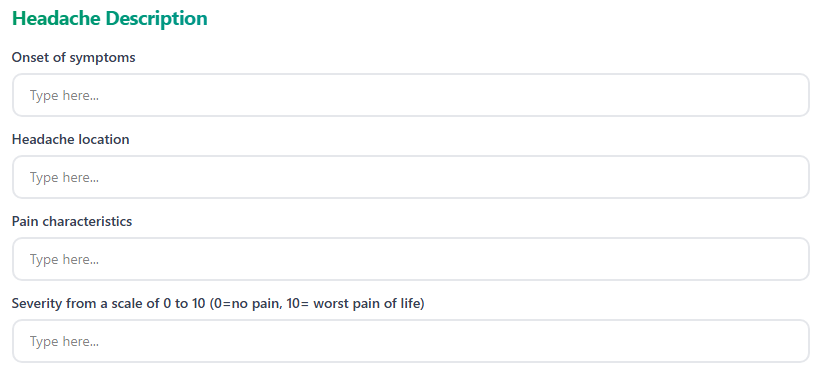
Free Text Fields
Users can add additional history elements as needed to a particular question which will automatically map to the Subjective section of the generated SOAP note.
Dropdowns
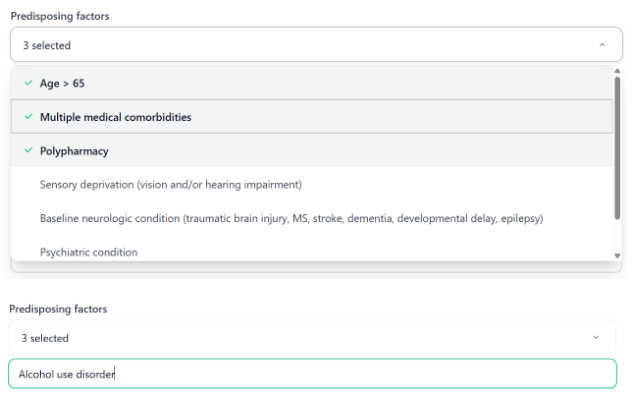
Drop-downs provide fixed options for selection. Choose the best fit—or select multiple if allowed—to insert it directly into the note. If no option fits, leave it blank and record the detail using an adjacent text field or during the final SOAP review. Selected information will automatically map to the Subjective section of the generated SOAP note.
Checklist & Stepper Views
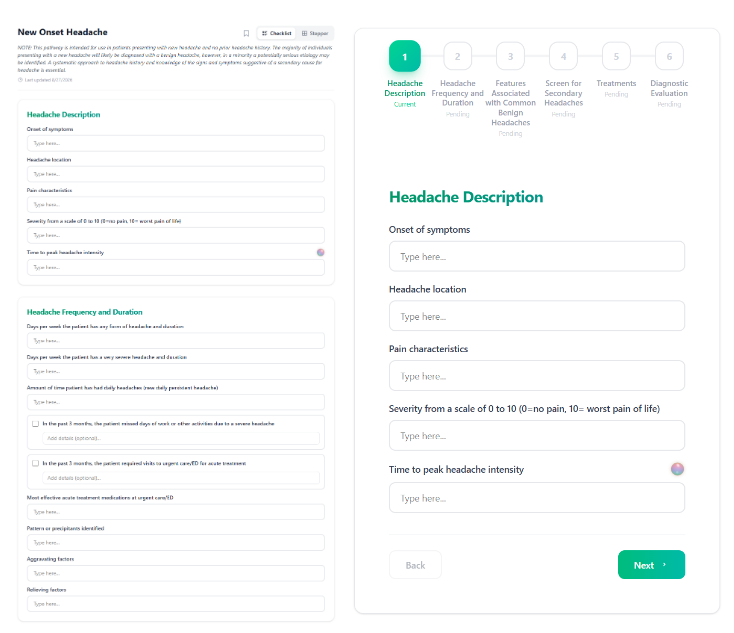
Switch views using the buttons under the title; active edits will be maintained when changing views and will have no effect on the final generated SOAP note
- Checklist (Default): Displays all sections and items on a single page for quick scanning and non-linear entry. Ideal for documenting after taking a history or reviewing for missed details.
- Stepper: Displays one section at a time with "Back" and "Next" controls and a running record of answered questions. Ideal for real-time patient interviews or learning a new pathway.
Generate, Review, and Edit SOAP Note
- Generate the Draft: Select 'Finish / Generate Summary'. NeuroNav automatically compiles your checked items, text entries, and selected dropdowns into a draft SOAP note.
- Start Section-by-Section Review: Select 'Start Review' and walk through each SOAP section sequentially: Subjective, Objective, Assessment, and Plan
- Edit Note Content: Click directly into any section's text window to edit
The Plan section can only be edited during this review or on the final generated page
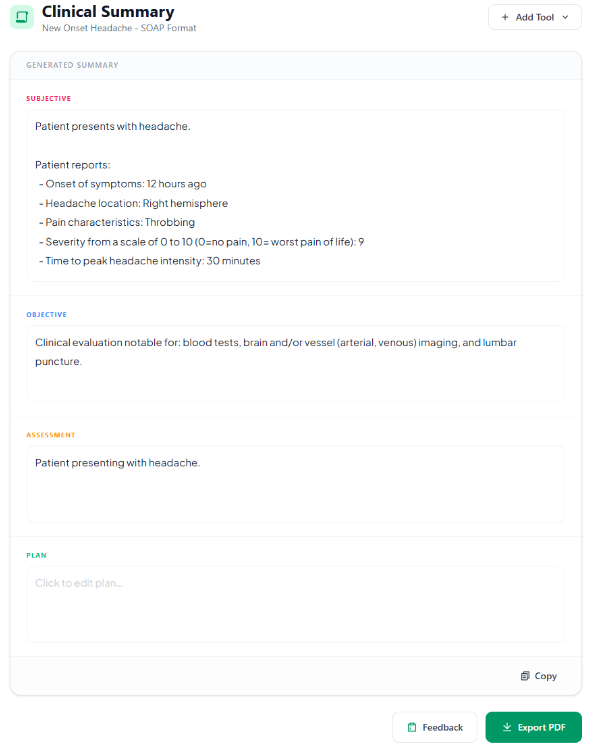
Export, Copy or Add a Tool
From the final SOAP page:
- Add Tool: Appends clinical diagrams (e.g., Chem-7 or CBC fishbones) below the note in a dedicated window
- Copy: Copies the note text to your clipboard for quick pasting into an EHR or template
- Export PDF: Downloads the note as a PDF document, placing any added diagrams on separate pages at the end
Exported PDF may be attached via email for future reference by the user or other individuals
Feedback Survey
A brief survey will pop up when the final SOAP note is generated. We encourage all users to complete it to help us understand user needs and continually improve the app.
Additional Features & Resources
- Sign In: Create an account to save favorite pathways and manage custom dotphrases (text-expansion templates for quick note entry)
- Mobile App Installation: Follow the Mobile Help Guide under Docs to install NeurologyNav on your smartphone and resolve common mobile issues
- Interactive Tools: Access lab-interpretation features and standalone fishbone diagrams on the Tools page
- Clinical Pathways: Explore multiple pathways across neurologic domains
- Documentation: Read Using Clinical Pathways under Docs for in-depth guidance on Checklist/Stepper views and the SOAP review process